

In this article I want to share some little helper functions that help me speed up my day-to-day work with the Android Debug Bridge (adb) and make it's usage a bit more comfortable.
Connect Wirelessly
Android versions >= 11 aka "Red Velvet Cake" allow developers to make use of wireless debugging. I find this very handy as it allows me to grab my phone anytime without cables being in my way. The process to get it running always felt cumbersome to me though.
After an initial pairing, we still need to connect to our device manually each time we enable wireless debugging via:
adb connect <IP>:<Port>
As the port changes each time, we need to go to the wireless debug settings, note down the port and connect via the above command. In order to speed this up, I am using the following helper function, utilizing nmap to scan for an open port and automatically connect to it.
adbc() {
  local phone="192.168.10.111" # Ip address of your phone
  local port
  port=$( nmap -sT "${phone}" -p30000-49999 | awk -F/ '/tcp open/{print $1}' )
  adb connect "$phone":"$port"
}
The port scan is actually quite quick so that I'm usually good-to-go after enabling Wireless-Debugging via a quick tile on my phone and then running adbc.
Device Selection
When developing for Android I often make use of multiple devices. Usually I have an emulator open inside Android Studio but often I also want to see and feel how my code works on a real device. Android Studio let's you select the device via a little dropdown, but as I am used to running my gradle tasks as well as installing my apps via the command line, I was looking for a way to replicate this functionality there. Using adb , we can tell it to use a specific device with the serial flag. The following command e. g. installs an apk on a specified emulator.
adb -s emulator-5554 install example.apkWhile that works, it's not really comfortable yet. In order to fix that, let met introduce gum to you, a tool for glamorous shell scripts. It has a bunch of features more than covered in this article, so make sure to check it out to bring your shell scripts to the next level. Leveraging gum, I usually just call adbs (s for "select") instead of adb . This gives us a nice drop-down to select a device, as well as some other sugar like displaying the actual Android version of the device.
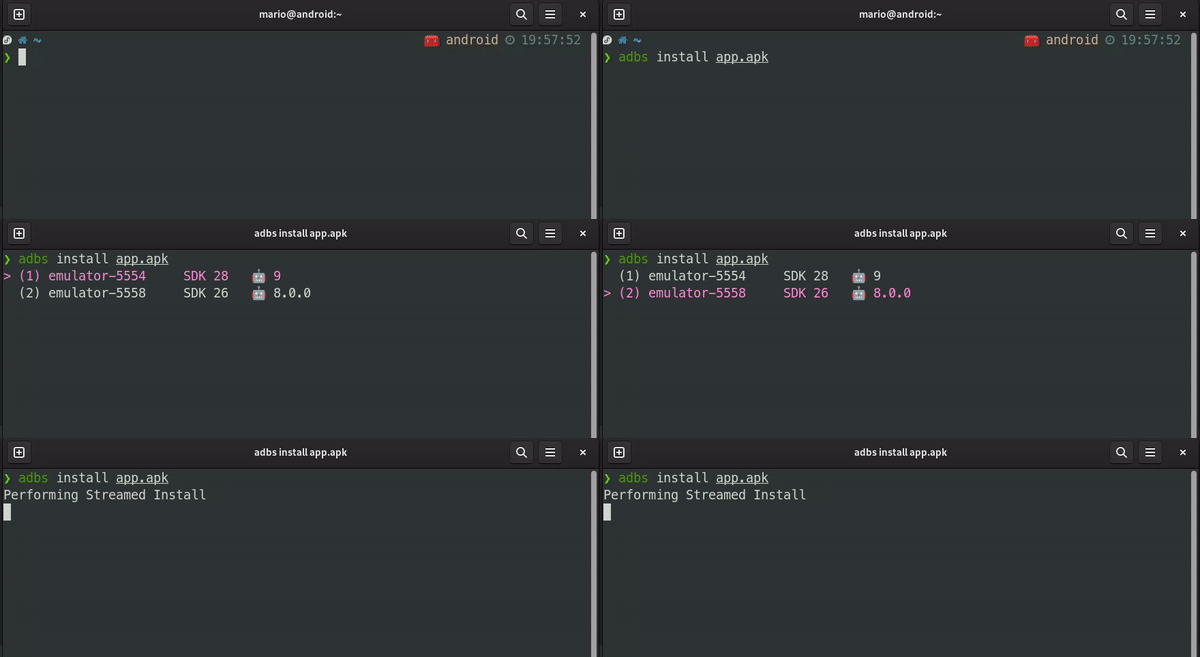
Similarly, I often find myself in a situation where ideally I want to install an app to multiple devices simultaneously, so I added adba , which will run the command against all connected devices. See this gist on GitHub for the full code as well as some other cli magic around scrcpy.